LiveListStore 是 AtomicXCore 中负责管理直播房间列表、创建、加入以及维护房间状态的核心模块。通过 LiveListStore,您可以为您的应用构建完整的直播生命周期管理。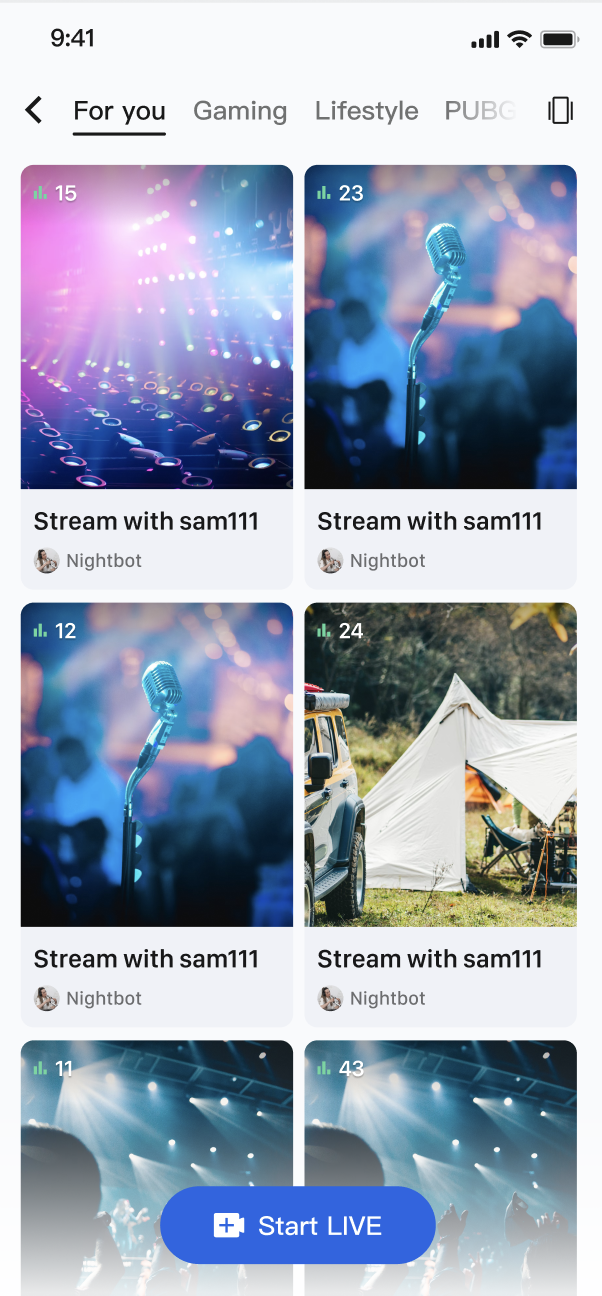
核心功能
获取直播列表:获取当前所有公开的直播间列表,支持分页加载。
直播生命周期管理:提供从创建、开播、加入、离开到结束直播的全套流程接口。
直播信息更新:主播可以随时更新直播间的公开信息,例如封面、公告等。
实时事件监听:监听直播结束、用户被踢出等关键事件。
自定义业务数据:强大的自定义元数据(
MetaData)能力,允许您在房间内存储和同步任何业务相关的信息,例如直播状态、音乐信息、自定义角色等。核心概念
在开始集成之前,我们先通过下表了解一下
LiveListStore 相关的几个核心概念:核心概念 | 类型 | 核心职责与描述 |
class | 代表一个直播间的所有信息模型。包含了直播 ID ( liveID)、名称 (liveName)、房主信息 (liveOwner) 以及自定义元数据 (metaData) 等。 | |
class | 代表直播列表模块的当前状态。其核心属性 liveList 是一个 ValueListenable<List<LiveInfo>> 类型,存储了拉取到的直播列表;currentLive 则代表用户当前所在的直播间信息。 | |
class | 代表直播房间的全局事件监听器。包含 onLiveEnded (直播结束) 和 onKickedOutOfLive (被踢出直播) 两种回调,用于处理关键的房间状态变更。 | |
class | 这是与直播列表和房间生命周期交互的核心管理类。它是一个全局单例 ( shared),负责所有直播房间的创建、加入、信息更新等操作。 |
实现步骤
步骤1:组件集成
视频直播:请参考 开播与观看 集成 AtomicXCore,完成接入。
语聊房:请参考 开播与收听 集成 AtomicXCore,完成接入。
步骤2:观众进入直播间实现
创建一个展示直播列表的页面,该页面使用
GridView 来布局直播间卡片。当用户点击某个卡片时,获取该直播间的 liveID,并跳转到观众观看页面。import 'package:flutter/material.dart';import 'package:atomic_x_core/atomicxcore.dart';/// 直播列表页面class LiveListPage extends StatefulWidget {const LiveListPage({super.key});@overrideState<LiveListPage> createState() => _LiveListPageState();}class _LiveListPageState extends State<LiveListPage> {final _liveListStore = LiveListStore.shared;final ScrollController _scrollController = ScrollController();bool _isLoading = false;@overridevoid initState() {super.initState();_liveListStore.liveState.liveList.addListener(_onLiveListChanged);_scrollController.addListener(_onScroll);_fetchLiveList();}void _onLiveListChanged() {setState(() {});}void _onScroll() {// 滚动到底部时加载更多if (_scrollController.position.pixels >=_scrollController.position.maxScrollExtent - 200) {_loadMore();}}Future<void> _fetchLiveList() async {if (_isLoading) return;setState(() => _isLoading = true);final result = await _liveListStore.fetchLiveList(cursor: '', count: 20);if (!result.isSuccess) {debugPrint('获取直播列表失败: ${result.message}');}setState(() => _isLoading = false);}Future<void> _loadMore() async {if (_isLoading) return;final cursor = _liveListStore.liveState.liveListCursor.value;if (cursor.isEmpty) return; // 没有更多数据setState(() => _isLoading = true);await _liveListStore.fetchLiveList(cursor: cursor, count: 20);setState(() => _isLoading = false);}Future<void> _refresh() async {_liveListStore.reset();await _fetchLiveList();}// 当用户点击列表中的某个卡片时void _onLiveCardTap(LiveInfo liveInfo) {// 创建观众观看页面,并将 liveID 传入Navigator.push(context,MaterialPageRoute(builder: (context) => YourAudiencePage(liveID: liveInfo.liveID),),);}@overridevoid dispose() {_liveListStore.liveState.liveList.removeListener(_onLiveListChanged);_scrollController.dispose();super.dispose();}@overrideWidget build(BuildContext context) {final liveList = _liveListStore.liveState.liveList.value;return Scaffold(appBar: AppBar(title: const Text('直播列表')),body: RefreshIndicator(onRefresh: _refresh,child: liveList.isEmpty? Center(child: _isLoading? const CircularProgressIndicator(): const Text('暂无直播'),): GridView.builder(controller: _scrollController,padding: const EdgeInsets.all(8),gridDelegate: const SliverGridDelegateWithFixedCrossAxisCount(crossAxisCount: 2,childAspectRatio: 0.75,crossAxisSpacing: 8,mainAxisSpacing: 8,),itemCount: liveList.length + (_isLoading ? 1 : 0),itemBuilder: (context, index) {if (index >= liveList.length) {return const Center(child: CircularProgressIndicator());}return _buildLiveCard(liveList[index]);},),),);}Widget _buildLiveCard(LiveInfo liveInfo) {return GestureDetector(onTap: () => _onLiveCardTap(liveInfo),child: Card(clipBehavior: Clip.antiAlias,child: Column(crossAxisAlignment: CrossAxisAlignment.start,children: [// 封面图Expanded(child: Stack(fit: StackFit.expand,children: [Image.network(liveInfo.coverURL,fit: BoxFit.cover,errorBuilder: (context, error, stackTrace) {return Container(color: Colors.grey[300]);},),// 直播中标签Positioned(top: 8,left: 8,child: Container(padding: const EdgeInsets.symmetric(horizontal: 6,vertical: 2,),decoration: BoxDecoration(color: Colors.red,borderRadius: BorderRadius.circular(4),),child: const Text('直播中',style: TextStyle(color: Colors.white, fontSize: 10),),),),// 观看人数Positioned(bottom: 8,right: 8,child: Container(padding: const EdgeInsets.symmetric(horizontal: 6,vertical: 2,),decoration: BoxDecoration(color: Colors.black54,borderRadius: BorderRadius.circular(4),),child: Row(mainAxisSize: MainAxisSize.min,children: [const Icon(Icons.visibility,color: Colors.white,size: 12,),const SizedBox(width: 4),Text('${liveInfo.totalViewerCount}',style: const TextStyle(color: Colors.white,fontSize: 10,),),],),),),],),),// 直播信息Padding(padding: const EdgeInsets.all(8),child: Column(crossAxisAlignment: CrossAxisAlignment.start,children: [Text(liveInfo.liveName,maxLines: 1,overflow: TextOverflow.ellipsis,style: const TextStyle(fontWeight: FontWeight.bold),),const SizedBox(height: 4),Row(children: [CircleAvatar(radius: 10,backgroundImage: NetworkImage(liveInfo.liveOwner.avatarURL,),),const SizedBox(width: 4),Expanded(child: Text(liveInfo.liveOwner.userName,maxLines: 1,overflow: TextOverflow.ellipsis,style: TextStyle(fontSize: 12,color: Colors.grey[600],),),),],),],),),],),),);}}/// 观众观看页面(占位)class YourAudiencePage extends StatelessWidget {final String liveID;const YourAudiencePage({super.key, required this.liveID});@overrideWidget build(BuildContext context) {return Scaffold(appBar: AppBar(title: const Text('直播间')),body: Center(child: Text('直播间: $liveID')),);}}
LiveInfo 参数说明
参数名 | 类型 | 描述 |
liveID | String | 直播间的唯一标识符。 |
liveName | String | 直播间的标题。 |
coverURL | String | 直播间的封面图片地址。 |
liveOwner | LiveUserInfo | 房主的个人信息。 |
totalViewerCount | int | 直播间的总观看人数。 |
categoryList | List<int> | 直播间的分类标签列表。 |
notice | String | 直播间的公告信息。 |
metaData | Map<String, String> | 开发者自定义的元数据,用于实现复杂的业务场景。 |
功能进阶
场景一:分类展示直播列表
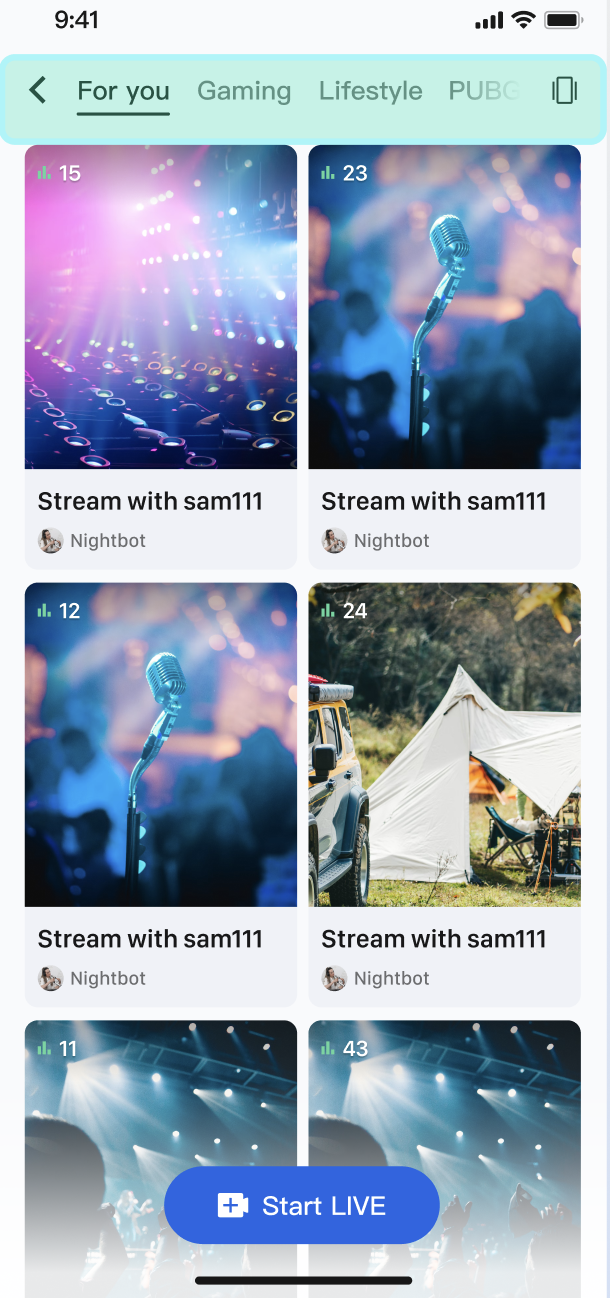
在 App 的直播广场页,顶部设有"热门"、"音乐"、"游戏"等分类标签。用户点击不同的标签后,下方的直播列表会动态筛选,只展示对应分类的直播间,从而帮助用户快速发现感兴趣的内容。
实现方式
核心是利用
LiveInfo 模型中的 categoryList 属性。当主播开播设置分类后,fetchLiveList 返回的 LiveInfo 对象中就会包含这些分类信息。您的 App 在获取到完整的直播列表后,只需在客户端根据用户选择的分类,对这个列表进行一次简单的筛选,然后刷新 UI 即可。代码示例
以下示例展示了如何创建一个
LiveListManager 来处理数据和筛选逻辑。import 'package:flutter/material.dart';import 'package:atomic_x_core/atomicxcore.dart';/// 直播列表数据管理器class LiveListManager extends ChangeNotifier {final _liveListStore = LiveListStore.shared;List<LiveInfo> _fullLiveList = [];List<LiveInfo> _filteredLiveList = [];int? _selectedCategoryId;List<LiveInfo> get filteredLiveList => _filteredLiveList;int? get selectedCategoryId => _selectedCategoryId;late final VoidCallback _liveListChangedListener = _onLiveListChanged;LiveListManager() {_liveListStore.liveState.liveList.addListener(_liveListChangedListener);}void _onLiveListChanged() {_fullLiveList = _liveListStore.liveState.liveList.value;_applyFilter();}Future<void> fetchFirstPage() async {_liveListStore.reset();await _liveListStore.fetchLiveList(cursor: '', count: 20);}/// 根据分类筛选直播列表void filterLiveList({int? categoryId}) {_selectedCategoryId = categoryId;_applyFilter();}void _applyFilter() {if (_selectedCategoryId == null) {// 如果 categoryId 为 null,则显示完整列表_filteredLiveList = List.from(_fullLiveList);} else {// 筛选包含指定分类的直播间_filteredLiveList = _fullLiveList.where((liveInfo) {return liveInfo.categoryList.contains(_selectedCategoryId);}).toList();}notifyListeners();}@overridevoid dispose() {_liveListStore.liveState.liveList.removeListener(_liveListChangedListener);super.dispose();}}
/// 带分类筛选的直播列表页面class CategoryLiveListPage extends StatefulWidget {const CategoryLiveListPage({super.key});@overrideState<CategoryLiveListPage> createState() => _CategoryLiveListPageState();}class _CategoryLiveListPageState extends State<CategoryLiveListPage> {final _manager = LiveListManager();late final VoidCallback _managerChangedListener = _onManagerChanged;// 分类列表(示例)final List<Map<String, dynamic>> _categories = [{'id': null, 'name': '全部'},{'id': 1, 'name': '音乐'},{'id': 2, 'name': '游戏'},{'id': 3, 'name': '聊天'},];@overridevoid initState() {super.initState();_manager.addListener(_managerChangedListener);_manager.fetchFirstPage();}void _onManagerChanged() {setState(() {});}// 当用户点击顶部分类标签时void _onCategoryTap(int? categoryId) {_manager.filterLiveList(categoryId: categoryId);}@overridevoid dispose() {_manager.removeListener(_managerChangedListener);_manager.dispose();super.dispose();}@overrideWidget build(BuildContext context) {return Scaffold(appBar: AppBar(title: const Text('直播广场')),body: Column(children: [// 分类标签栏SizedBox(height: 50,child: ListView.builder(scrollDirection: Axis.horizontal,padding: const EdgeInsets.symmetric(horizontal: 8),itemCount: _categories.length,itemBuilder: (context, index) {final category = _categories[index];final isSelected = _manager.selectedCategoryId == category['id'];return Padding(padding: const EdgeInsets.symmetric(horizontal: 4),child: ChoiceChip(label: Text(category['name']),selected: isSelected,onSelected: (_) => _onCategoryTap(category['id']),),);},),),// 直播列表Expanded(child: _manager.filteredLiveList.isEmpty? const Center(child: Text('暂无直播')): GridView.builder(padding: const EdgeInsets.all(8),gridDelegate:const SliverGridDelegateWithFixedCrossAxisCount(crossAxisCount: 2,childAspectRatio: 0.75,crossAxisSpacing: 8,mainAxisSpacing: 8,),itemCount: _manager.filteredLiveList.length,itemBuilder: (context, index) {final liveInfo = _manager.filteredLiveList[index];return _buildLiveCard(liveInfo);},),),],),);}Widget _buildLiveCard(LiveInfo liveInfo) {return Card(clipBehavior: Clip.antiAlias,child: Column(crossAxisAlignment: CrossAxisAlignment.start,children: [Expanded(child: Image.network(liveInfo.coverURL,fit: BoxFit.cover,width: double.infinity,errorBuilder: (context, error, stackTrace) {return Container(color: Colors.grey[300]);},),),Padding(padding: const EdgeInsets.all(8),child: Text(liveInfo.liveName,maxLines: 1,overflow: TextOverflow.ellipsis,),),],),);}}
场景二:展示电商直播的商品信息
在电商直播中,主播正在讲解一款商品。此时,所有观众的直播画面下方都会弹出一张商品卡片,实时展示该商品的图片、名称和价格。当主播切换讲解下一件商品时,所有观众端的卡片都会自动、同步更新。

实现方式
主播端将当前商品的结构化信息(建议使用 JSON 格式)通过
updateLiveMetaData 接口设置到一个自定义的 key(例如 "product_info")中。AtomicXCore 会将这个变更实时同步给所有观众。观众端只需订阅 LiveListState.currentLive,监听 metaData 的变化,一旦发现 product_info 的值更新,就解析其中的 JSON 数据并刷新商品卡片 UI。代码示例
import 'dart:convert';import 'package:flutter/material.dart';import 'package:atomic_x_core/atomicxcore.dart';/// 商品信息模型class Product {final String id;final String name;final String price;final String imageUrl;Product({required this.id,required this.name,required this.price,required this.imageUrl,});factory Product.fromJson(Map<String, dynamic> json) {return Product(id: json['id'] ?? '',name: json['name'] ?? '',price: json['price'] ?? '',imageUrl: json['imageUrl'] ?? '',);}Map<String, dynamic> toJson() {return {'id': id,'name': name,'price': price,'imageUrl': imageUrl,};}}/// 主播端:推送商品信息class HostProductController {final _liveListStore = LiveListStore.shared;Future<void> pushProductInfo(Product product) async {final jsonString = jsonEncode(product.toJson());final metaData = {'product_info': jsonString};// 使用全局单例的 liveListStore 来更新 metaDatafinal result = await _liveListStore.updateLiveMetaData(metaData);if (result.isSuccess) {debugPrint('商品 ${product.name} 信息推送成功');} else {debugPrint('商品信息推送失败: ${result.message}');}}}/// 观众端:商品卡片组件class ProductCardWidget extends StatefulWidget {const ProductCardWidget({super.key});@overrideState<ProductCardWidget> createState() => _ProductCardWidgetState();}class _ProductCardWidgetState extends State<ProductCardWidget> {final _liveListStore = LiveListStore.shared;Product? _currentProduct;String? _lastProductInfo;late final VoidCallback _currentLiveChangedListener = _onCurrentLiveChanged;@overridevoid initState() {super.initState();_liveListStore.liveState.currentLive.addListener(_currentLiveChangedListener);}void _onCurrentLiveChanged() {final currentLive = _liveListStore.liveState.currentLive.value;final productInfo = currentLive.metaData['product_info'];// 检查是否有变化if (productInfo != _lastProductInfo) {_lastProductInfo = productInfo;_parseProductInfo(productInfo);}}void _parseProductInfo(String? jsonString) {if (jsonString == null || jsonString.isEmpty) {setState(() => _currentProduct = null);return;}try {final json = jsonDecode(jsonString) as Map<String, dynamic>;final product = Product.fromJson(json);setState(() => _currentProduct = product);} catch (e) {debugPrint('解析商品信息失败: $e');}}@overridevoid dispose() {_liveListStore.liveState.currentLive.removeListener(_currentLiveChangedListener);super.dispose();}@overrideWidget build(BuildContext context) {if (_currentProduct == null) {return const SizedBox.shrink();}return Container(margin: const EdgeInsets.all(16),padding: const EdgeInsets.all(12),decoration: BoxDecoration(color: Colors.white,borderRadius: BorderRadius.circular(12),boxShadow: [BoxShadow(color: Colors.black.withOpacity(0.1),blurRadius: 8,offset: const Offset(0, 2),),],),child: Row(children: [// 商品图片ClipRRect(borderRadius: BorderRadius.circular(8),child: Image.network(_currentProduct!.imageUrl,width: 80,height: 80,fit: BoxFit.cover,errorBuilder: (context, error, stackTrace) {return Container(width: 80,height: 80,color: Colors.grey[300],child: const Icon(Icons.image),);},),),const SizedBox(width: 12),// 商品信息Expanded(child: Column(crossAxisAlignment: CrossAxisAlignment.start,mainAxisSize: MainAxisSize.min,children: [Text(_currentProduct!.name,style: const TextStyle(fontSize: 14,fontWeight: FontWeight.bold,),maxLines: 2,overflow: TextOverflow.ellipsis,),const SizedBox(height: 4),Text('¥${_currentProduct!.price}',style: const TextStyle(fontSize: 16,color: Colors.red,fontWeight: FontWeight.bold,),),],),),// 购买按钮ElevatedButton(onPressed: () {// 实现购买逻辑debugPrint('购买商品: ${_currentProduct!.name}');},style: ElevatedButton.styleFrom(backgroundColor: Colors.orange,foregroundColor: Colors.white,),child: const Text('立即购买'),),],),);}}
API 文档
常见问题
使用 updateLiveMetaData 时有哪些需要注意的限制和规则?
为了保证系统的稳定和高效,
metaData 的使用遵循以下规则:权限:只有房主和管理员可以调用
updateLiveMetaData。普通观众没有权限。数量与大小限制:
单个房间最多支持 10 个 key。
每个 key 的长度不超过 50 字节,每个 value 的长度不超过 2KB。
单个房间所有 value 的总大小不超过 16KB。
冲突解决:
metaData 的更新机制是"后来者覆盖"。如果多个管理员在短时间内修改同一个 key,最后一次的修改会生效。建议在业务设计上避免多人同时修改同一个关键信息。


