powershell2.0的弊端
原创
powershell2.0的弊端
原创
Windows技术交流
修改于 2024-06-06 19:38:26
修改于 2024-06-06 19:38:26
1、7z在powershell2.0命令行的特定解压命令有问题,兼容性差,得换个powershell语句才行
例如下面代码执行到解压哪一行时就走不下去,所以我才用#注释了它,然后用另一个兼容性高的powershell命令替代了它
#& "$env:ProgramFiles\7-Zip\7z.exe" x -aoa "c:\Users\Administrator\Downloads\Install_QCloudVirtIO.zip" -o"c:\Users\Administrator\Downloads\Install_QCloudVirtIO"
换成了这句在powershell2.0和5.1上都支持
Start-Process -FilePath "$env:ProgramFiles\7-Zip\7z.exe" -ArgumentList "x -aoa ""c:\Users\Administrator\Downloads\Install_QCloudVirtIO.zip"" -o""c:\Users\Administrator\Downloads\Install_QCloudVirtIO""" -NoNewWindow -Wait
#ps1
#wget http://windows-1251783334.cos.ap-shanghai.myqcloud.com/Install_QCloudVirtIO.zip -Outfile c:\Users\Administrator\Downloads\Install_QCloudVirtIO.zip
$client1 = new-object System.Net.WebClient
$client1.DownloadFile('http://windows-1251783334.cos.ap-shanghai.myqcloud.com/Install_QCloudVirtIO_new.zip','C:\Users\Administrator\Downloads\Install_QCloudVirtIO_new.zip')

#& "$env:ProgramFiles\7-Zip\7z.exe" x -aoa "c:\Users\Administrator\Downloads\Install_QCloudVirtIO_new.zip" -o"c:\Users\Administrator\Downloads\Install_QCloudVirtIO_new"

Start-Process -FilePath "$env:ProgramFiles\7-Zip\7z.exe" -ArgumentList "x -aoa ""c:\Users\Administrator\Downloads\Install_QCloudVirtIO_new.zip"" -o""c:\Users\Administrator\Downloads\Install_QCloudVirtIO_new""" -NoNewWindow -Wait

cd "c:\Users\Administrator\Downloads\Install_QCloudVirtIO_new"
./install_qcloud_virtio.ps1
2、很多好用的命令,没有
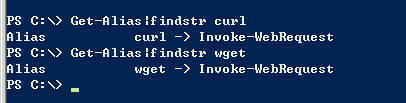
比如最常用的Invoke-WebRequest (Invoke-WebRequest简写wget、curl,注意没有.exe,Windows下是有wget.exe、curl.exe的,有的版本不带,有的版本比如从server2019开始带curl.exe,建议如果你真的有用到wget.exe、curl.exe,一定不要图省事而少写了.exe,最好是写全路径,这样才有唯一性)
所以找替代
$client1 = new-object System.Net.WebClient
$client1.DownloadFile('url','C:\Users\Administrator\Downloads\filename.xxx')
3、照顾代码兼容性颇为恼火
比如这段命令在powershell5.1中,不论是否匹配到,都不会报错,但在powershell2.0中要么第2句$OEMNumbers匹配不到(语法问题,调整后可以匹配到),要么匹配不到则在foreach语句中出现异常
$RedHatDrivers1 = pnputil.exe -e | Select-String -Pattern "Red Hat" -Context 1, 0
$RedHatDrivers1
$OEMNumbers = $RedHatDrivers1.Context.PreContext | Select-String -Pattern "oem\d+\.inf" -AllMatches | % { $_.Matches } | % { $_.Value }
$OEMNumbers

foreach ($OEMNumber in $OEMNumbers) {
    Write-Host "Deleting $OEMNumber"
    pnputil.exe -f -d $OEMNumber
}


$TencentDrivers2 = pnputil.exe -e | Select-String -Pattern "Tencent" -Context 1, 0
$TencentDrivers2
$OEMNumbers = $TencentDrivers2.Context.PreContext | Select-String -Pattern "oem\d+\.inf" -AllMatches | % { $_.Matches } | % { $_.Value }
$OEMNumbers

foreach ($OEMNumber in $OEMNumbers) {
    Write-Host "Deleting $OEMNumber"
    pnputil.exe -f -d $OEMNumber
}
不得不为了兼容性而调整成更复杂的代码逻辑才能既兼容powershell2.0,也兼容powershell5.1
$RedHatDrivers1 = pnputil.exe -e | Select-String -Pattern "Red Hat" -Context 1, 0
$RedHatDrivers1
#$OEMNumbers = $RedHatDrivers1.Context.PreContext | Select-String -Pattern "oem\d+\.inf" -AllMatches | % { $_.Matches } | % { $_.Value }
$OEMNumbers = $RedHatDrivers1 | ForEach-Object { $_.Context.PreContext } | Select-String -Pattern "oem\d+\.inf" -AllMatches | ForEach-Object { $_.Matches } | ForEach-Object { $_.Value }
$OEMNumbers

if($OEMNumbers -eq $null)
{Write-Host "get null"}else{
foreach ($OEMNumber in $OEMNumbers) {
    Write-Host $OEMNumber
    Write-Host "Deleting $OEMNumber"
    pnputil.exe -f -d $OEMNumber
    Write-Host "`n`n"
}
}


$TencentDrivers2 = pnputil.exe -e | Select-String -Pattern "Tencent" -Context 1, 0
$TencentDrivers2
#$OEMNumbers = $TencentDrivers2.Context.PreContext | Select-String -Pattern "oem\d+\.inf" -AllMatches | % { $_.Matches } | % { $_.Value }
$OEMNumbers = $TencentDrivers2 | ForEach-Object { $_.Context.PreContext } | Select-String -Pattern "oem\d+\.inf" -AllMatches | ForEach-Object { $_.Matches } | ForEach-Object { $_.Value }
$OEMNumbers

if($OEMNumbers -eq $null)
{Write-Host "get null"}else{
foreach ($OEMNumber in $OEMNumbers) {
    Write-Host $OEMNumber
    Write-Host "Deleting $OEMNumber"
    pnputil.exe -f -d $OEMNumber
    Write-Host "`n`n"
}
}
4、不支持tls1.2,得升级到powershell5.1才好(当然,如果有些server系统本身已经能支持得更高,比5.1还高,那支持tls1.2肯定也没问题)
在升级到powershell5.1后,powershell支持tls1.2还是有问题的话,参考我这篇文档设置powers配置文件来解决:https://cloud.tencent.com/developer/article/2363308
C:\Windows\System32\WindowsPowerShell\v1.0\profile.ps1的内容就一句话:
[Net.ServicePointManager]::SecurityProtocol = [Net.SecurityProtocolType]::Tls12

打开powers时报错如下
设置“SecurityProtocol”时发生异常:“由于枚举值无效,无法将空值转换为类型“System.Net.SecurityProtocolType”。
请指定以下枚举值之一,然后重试。可能的枚举值为“Ssl3、Tls”。

所在位置 C:\Windows\System32\WindowsPowerShell\v1.0\profile.ps1:1 字符: 28
+ [Net.ServicePointManager]:: <<<< SecurityProtocol = [Net.SecurityProtocolType]::Tls12
    + CategoryInfo          : InvalidOperation: (:) [], RuntimeException
    + FullyQualifiedErrorId : PropertyAssignmentException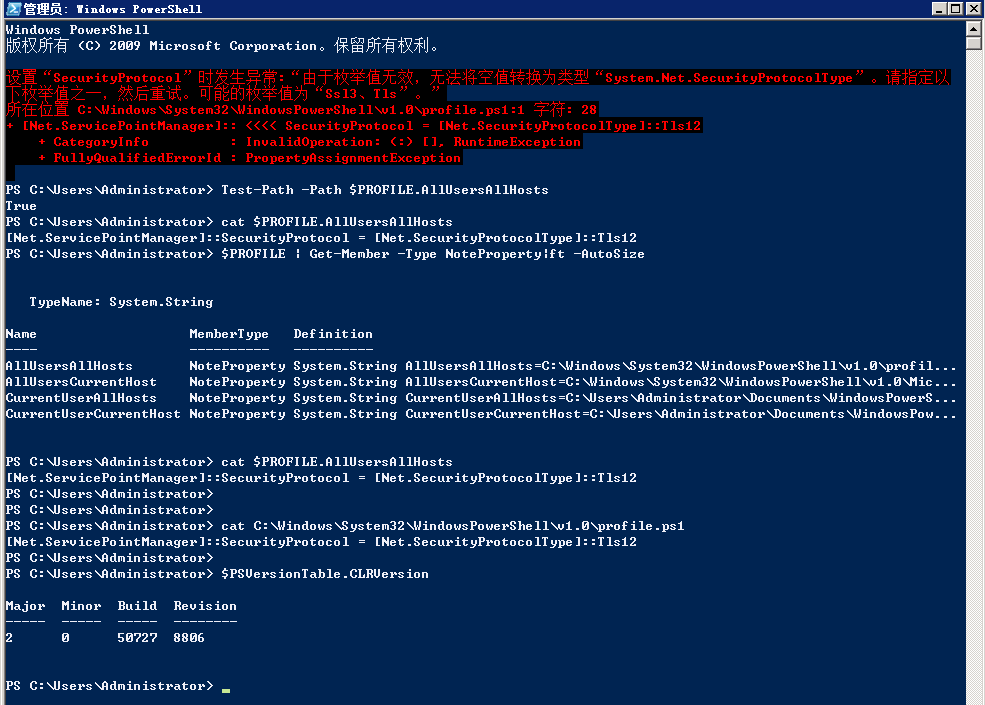
这个错误的原因是您的 PowerShell 环境不支持 TLS 1.2。这可能是因为您正在使用的 .NET Framework 或 PowerShell 的版本过低。
在 PowerShell 中,TLS 1.2 由 .NET Framework 提供支持。.NET Framework 4.5 及更高版本支持 TLS 1.2,但只有在 .NET Framework 4.6 及更高版本中,TLS 1.2 才是默认启用的。
您可以通过以下命令查看当前 PowerShell 使用的 .NET Framework 版本:
#ps1
$PSVersionTable.CLRVersion
如果您的 .NET Framework 版本低于 4.5,或者您的 PowerShell 版本低于 3.0,那么您将无法使用 TLS 1.2。
要解决此问题,您可以:
- 升级 .NET Framework 到 4.5 或更高版本。
- 升级 PowerShell 到 3.0 或更高版本。
- 如果您无法升级,那么您可能需要将
SecurityProtocol设置为您的环境支持的值,如Ssl3或Tls。
例如,将 profile.ps1 的内容更改为:
#ps1
[Net.ServicePointManager]::SecurityProtocol = [Net.SecurityProtocolType]::Tls
请注意,SSL 3.0 和 TLS 1.0 都存在已知的安全问题,不推荐使用。只有在无法升级的情况下才应将 SecurityProtocol 设置为这些值。
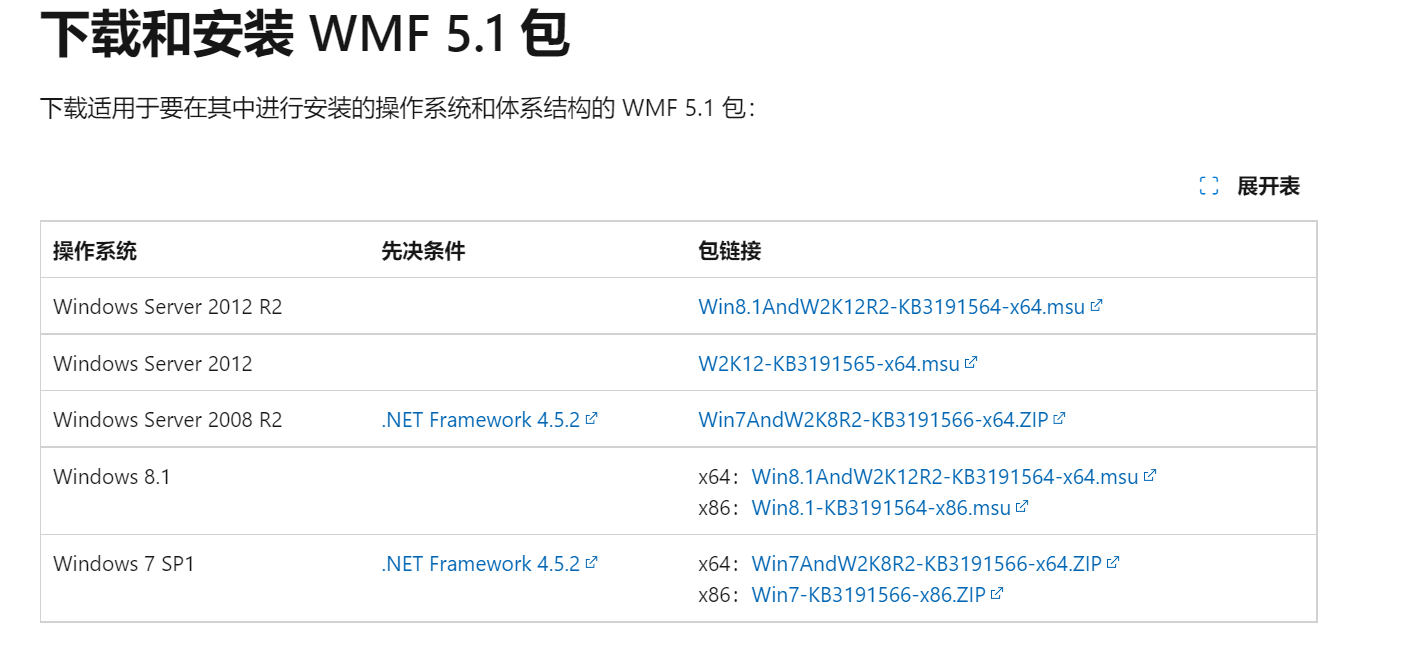
安装powershell5.1:
原创声明:本文系作者授权腾讯云开发者社区发表,未经许可,不得转载。
如有侵权,请联系 cloudcommunity@tencent.com 删除。
目录
腾讯云开发者

Copyright © 2013 - 2026 Tencent Cloud. All Rights Reserved. 腾讯云 版权所有
深圳市腾讯计算机系统有限公司 ICP备案/许可证号:粤B2-20090059  粤公网安备44030502008569号
腾讯云计算(北京)有限责任公司 京ICP证150476号 | 京ICP备11018762号