第二十七章:Python-Aquarel库与多种主题库结合实现Matplotlib美化

第二十七章:Python-Aquarel库与多种主题库结合实现Matplotlib美化

啊阿狸不会拉杆
发布于 2026-01-21 10:44:02
发布于 2026-01-21 10:44:02
资源绑定附上完整资料供读者参考学习!
一、库介绍与安装
1.1 Aquarel库
Aquarel是一个轻量级的Python库,用于简化Matplotlib的样式配置,使数据可视化更加美观和高效。
1.2 Catppuccin库
Catppuccin是一个社区驱动的粉彩主题库,提供多种配色方案,适合用于数据可视化的美化。
1.3 mplcyberpunk库
mplcyberpunk是一个基于Matplotlib的库,用于创建“网络朋克风格”的图表,具有独特的视觉效果。
1.4 matplotx库
matplotx是一个扩展Matplotlib功能的库,提供了更多现代化的图表样式和工具。
1.5 gruvbox库
gruvbox是一个基于复古色调的主题库,适合用于创建复古风格的图表。
1.6 安装方法
bash
pip install aquarel catppuccin mplcyberpunk matplotx gruvbox二、常见操作示例
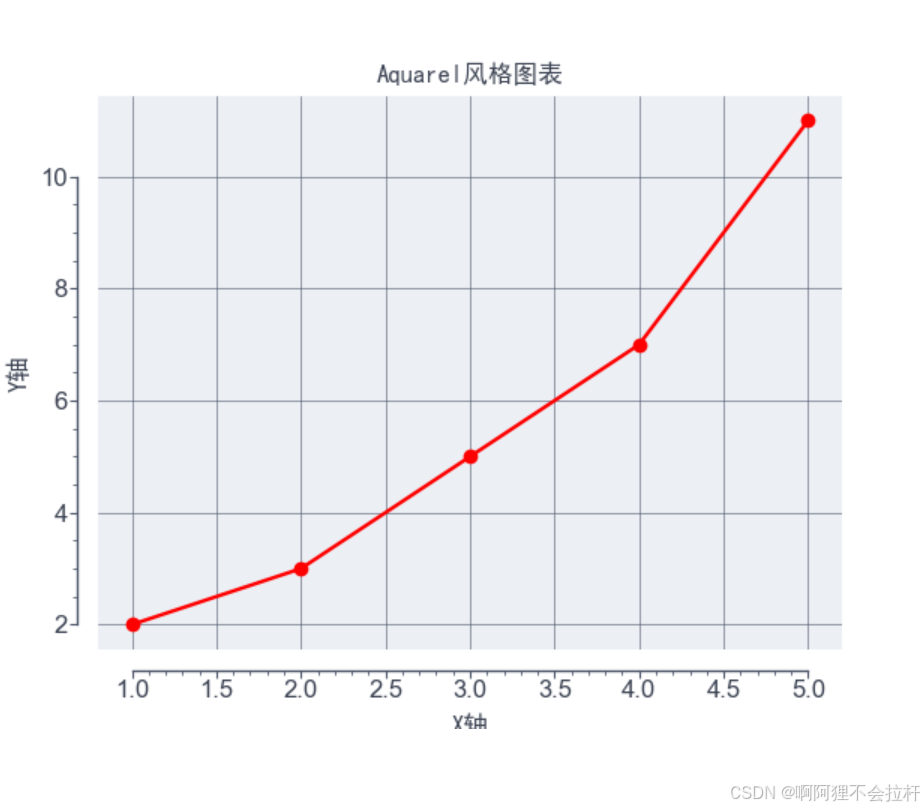
2.1 使用Aquarel库创建基本图表
Python示例代码
from aquarel import load_theme
import matplotlib.pyplot as plt

# 创建数据
x = [1, 2, 3, 4, 5]
y = [2, 3, 5, 7, 11]

# 加载并应用主题
theme = load_theme("arctic_light")
theme.apply()

# 绘制图表
plt.plot(x, y, marker='o', linestyle='-', color='red')
plt.title('Aquarel风格图表',font='SimHei')
plt.xlabel('X轴',font='SimHei')
plt.ylabel('Y轴',font='SimHei')
plt.grid(True)

# 应用转换
theme.apply_transforms()

# 显示图表
plt.show()
效果展示
2.2 使用Catppuccin库美化图表
Python示例代码
import matplotlib.pyplot as plt

# 创建数据
x = [1, 2, 3, 4, 5]
y = [2, 3, 5, 7, 11]

# 手动定义Catppuccin颜色(以Mocha主题为例)
catppuccin_colors = {
    'rosewater': '#dc8a78',
    'flamingo': '#dd7878',
    'pink': '#ea76cb',
    'mauve': '#8839ef',
    'red': '#d20f39',
    'maroon': '#e64553',
    'peach': '#fe640b',
    'yellow': '#df8e1d',
    'green': '#40a02b',
    'teal': '#179299',
    'sky': '#04a5e5',
    'sapphire': '#209fb5',
    'blue': '#1e66f5',
    'lavender': '#7287fd',
    'text': '#4c4f69',
    'subtext1': '#a6adc8',
    'subtext0': '#8087a2',
    'overlay0': '#575e75',
    'surface0': '#363a4f',
    'base': '#1e1e2e',
    'mantle': '#181926',
    'crust': '#131420'
}

# 创建图表
plt.figure(figsize=(10, 6))

# 设置图表背景
plt.gca().set_facecolor(catppuccin_colors['base'])

# 绘制图表
plt.plot(x, y, marker='o', linestyle='-', color=catppuccin_colors['rosewater'])

# 设置标题和标签
plt.title('Catppuccin风格图表', color=catppuccin_colors['text'],font='SimHei',fontsize=30)
plt.xlabel('X轴', color=catppuccin_colors['subtext1'],font='SimHei',fontsize=30)
plt.ylabel('Y轴', color=catppuccin_colors['subtext1'],font='SimHei',fontsize=30)

# 设置网格
plt.grid(True, linestyle='--', alpha=0.5, color=catppuccin_colors['overlay0'])

# 显示图表
plt.tight_layout()
plt.show()
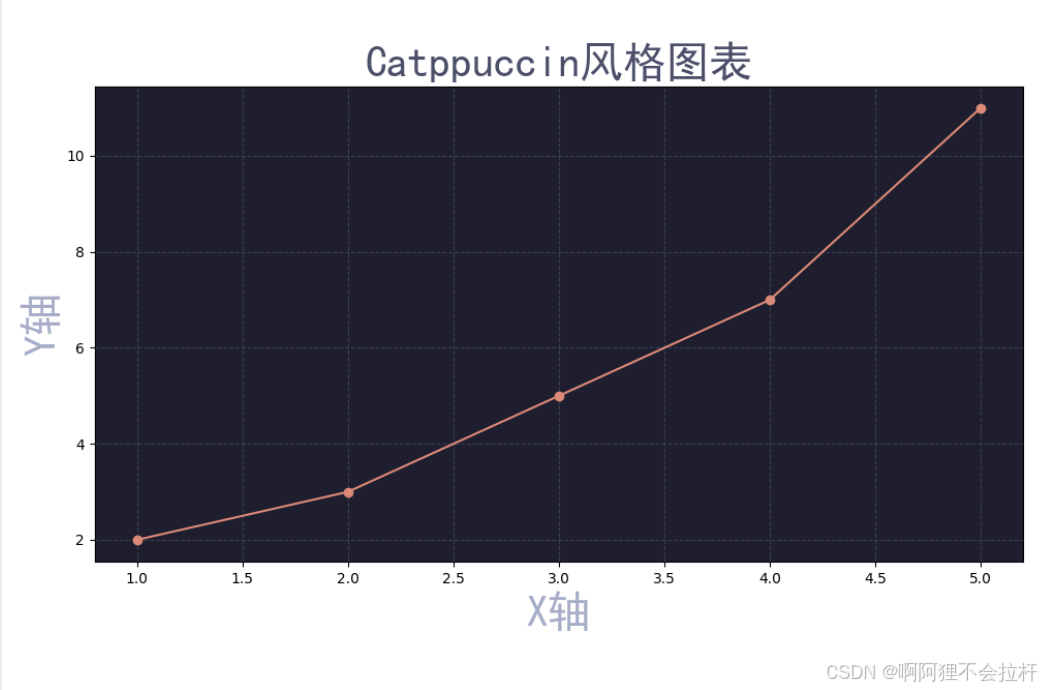
效果展示
2.3 使用mplcyberpunk库创建网络朋克风格图表
Python示例代码
import matplotlib.pyplot as plt
import mplcyberpunk

# 创建数据
x = [1, 2, 3, 4, 5]
y = [2, 3, 5, 7, 11]

# 应用网络朋克风格
plt.style.use("cyberpunk")

# 绘制图表
plt.plot(x, y, marker='o', linestyle='-', color='red')

# 添加发光效果
mplcyberpunk.add_glow_effects()

# 设置标题和标签
plt.title('网络朋克风格图表',font='SimHei')
plt.xlabel('X轴',font='SimHei')
plt.ylabel('Y轴',font='SimHei')

# 设置网格
plt.grid(True)

# 显示图表
plt.show()
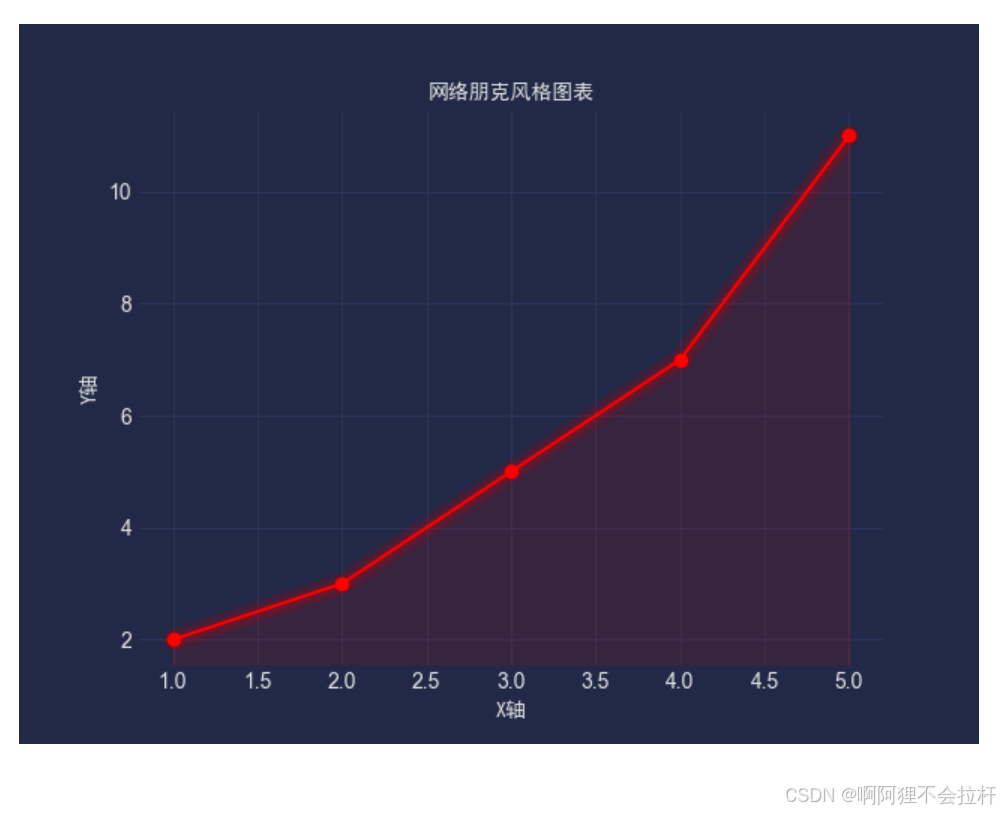
效果展示
三、高级示例
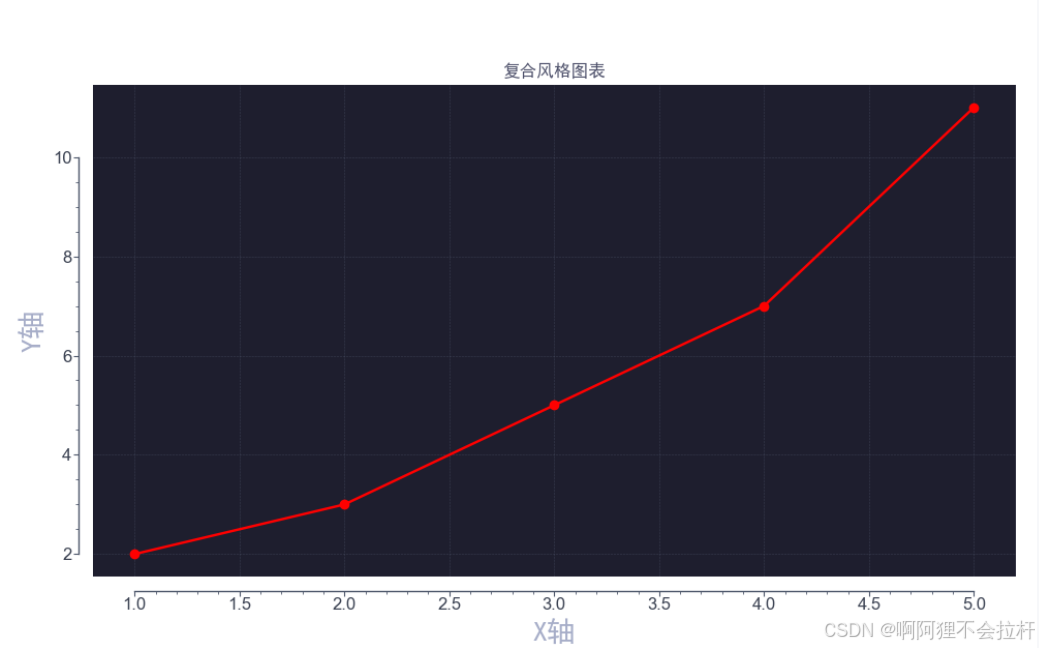
3.1 结合多种主题创建复合风格图表
Python示例代码
import matplotlib.pyplot as plt
from aquarel import load_theme
import mplcyberpunk as mp

# 创建数据
x = [1, 2, 3, 4, 5]
y = [2, 3, 5, 7, 11]

# 手动定义Catppuccin颜色(以Mocha主题为例)
catppuccin_colors = {
    'rosewater': '#dc8a78',
    'text': '#4c4f69',
    'subtext1': '#a6adc8',
    'overlay0': '#575e75',
    'base': '#1e1e2e'
}

# 应用Aquarel主题
theme = load_theme("arctic_light")
theme.apply()

# 绘制图表
plt.figure(figsize=(10, 6))
plt.plot(x, y, marker='o', linestyle='-', color='red')

# 设置标题和标签
plt.title('复合风格图表', color=catppuccin_colors['text'], fontsize=30, fontweight='bold',font='SimHei')
plt.xlabel('X轴', color=catppuccin_colors['subtext1'], fontsize=20,font='SimHei')
plt.ylabel('Y轴', color=catppuccin_colors['subtext1'], fontsize=20,font='SimHei')

# 设置网格
plt.grid(True, linestyle='--', alpha=0.5, color=catppuccin_colors['overlay0'])

# 设置背景颜色
plt.gca().set_facecolor(catppuccin_colors['base'])

# 应用Aquarel转换
theme.apply_transforms()

# 显示图表
plt.tight_layout()
plt.show()
效果展示
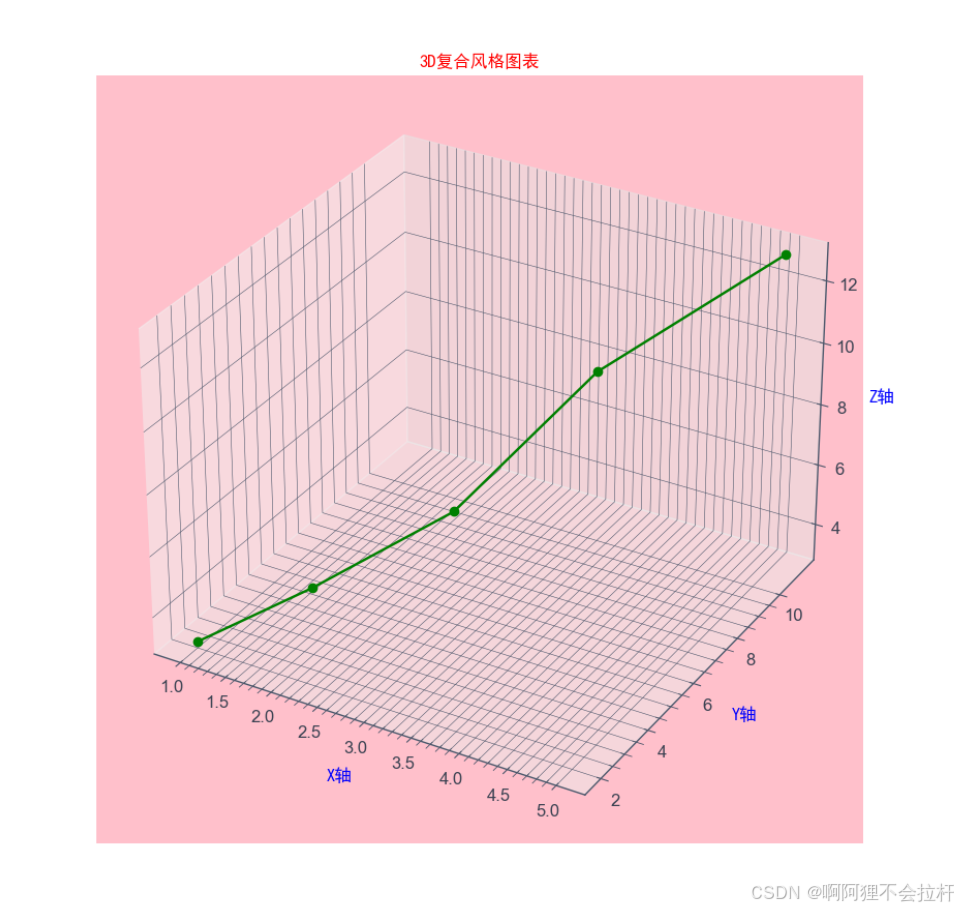
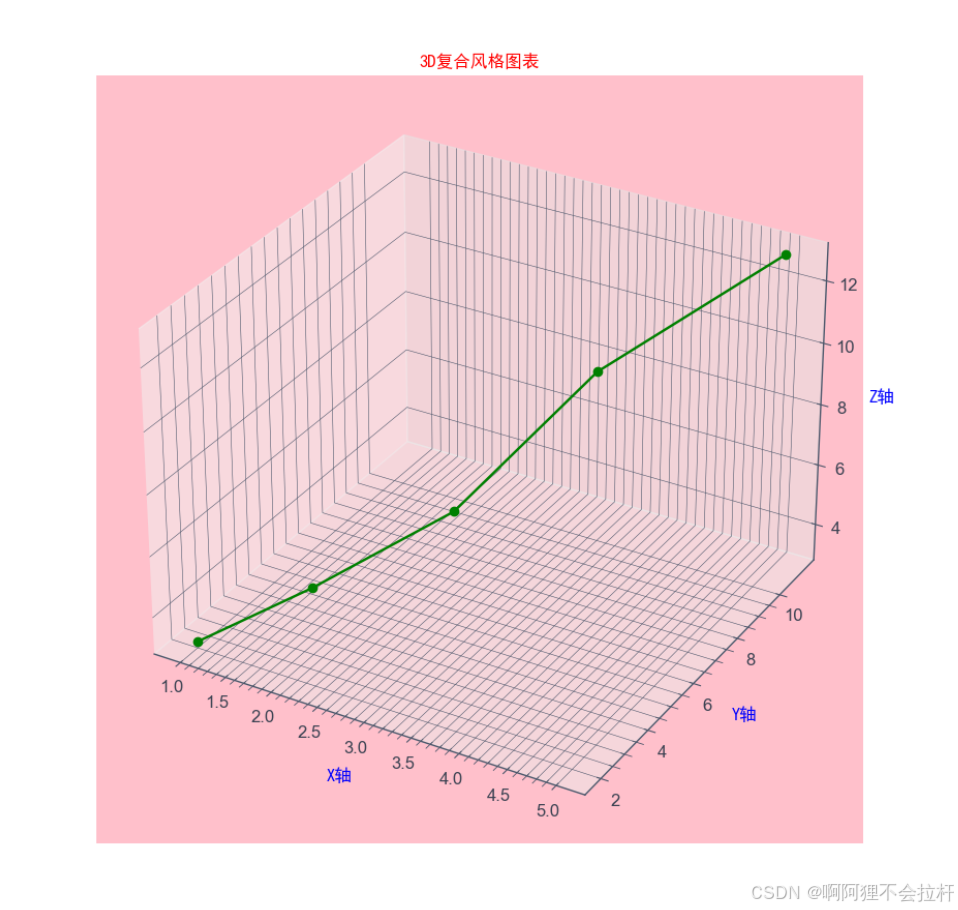
3.2 创建3D图表并应用主题
Python示例代码
import matplotlib.pyplot as plt
from mpl_toolkits.mplot3d import Axes3D
from aquarel import load_theme

# 手动定义Catppuccin颜色(以Mocha主题为例)
catppuccin_colors = {
    'rosewater': 'green',
    'text': 'red',
    'subtext1': 'blue',
    'overlay0': 'purple',
    'base': 'pink'
}

# 创建数据
x = [1, 2, 3, 4, 5]
y = [2, 3, 5, 7, 11]
z = [3, 5, 7, 11, 13]

# 应用Aquarel主题
theme = load_theme("arctic_light")
theme.apply()

# 创建3D图表
fig = plt.figure(figsize=(10, 8))
ax = fig.add_subplot(111, projection='3d')

# 绘制3D图
ax.plot(x, y, z, c=catppuccin_colors['rosewater'], marker='o')

# 设置标题和标签
ax.set_title('3D复合风格图表', fontsize=16, color=catppuccin_colors['text'],font='SimHei')
ax.set_xlabel('X轴', fontsize=12, color=catppuccin_colors['subtext1'],font='SimHei')
ax.set_ylabel('Y轴', fontsize=12, color=catppuccin_colors['subtext1'],font='SimHei')
ax.set_zlabel('Z轴', fontsize=12, color=catppuccin_colors['subtext1'],font='SimHei')

# 设置网格
ax.grid(True, linestyle='--', alpha=0.5, color=catppuccin_colors['overlay0'])

# 设置背景颜色
ax.set_facecolor(catppuccin_colors['base'])

# 应用Aquarel转换
theme.apply_transforms()

# 显示图表
plt.tight_layout()
plt.show()
效果展示
四、库用法总结
4.1 Aquarel库
函数名 | 参数 | 描述 |
|---|---|---|
style | 无 | 应用Aquarel默认样式 |
4.2 Catppuccin库
函数名 | 参数 | 描述 |
|---|---|---|
style | 无 | 应用Catppuccin默认样式 |
colors | 无 | 获取Catppuccin主题颜色 |
4.3 mplcyberpunk库
函数名 | 参数 | 描述 |
|---|---|---|
style | 无 | 应用网络朋克风格 |
4.4 matplotx库
函数名 | 参数 | 描述 |
|---|---|---|
style | 无 | 应用matplotx默认样式 |
4.5 gruvbox库
函数名 | 参数 | 描述 |
|---|---|---|
style | 无 | 应用gruvbox默认样式 |
五、总结
通过结合Aquarel、Catppuccin、mplcyberpunk、matplotx和gruvbox库,可以轻松创建出美观且多样化的Matplotlib图表。这些库提供了丰富的主题和样式,帮助开发者快速实现高质量的可视化效果。希望本文的示例和总结能够帮助读者更好地理解和应用这些库。资源绑定附上完整资料供读者参考学习!
本文参与 腾讯云自媒体同步曝光计划,分享自作者个人站点/博客。
原始发表:2026-01-20,如有侵权请联系 cloudcommunity@tencent.com 删除
目录
腾讯云开发者

Copyright © 2013 - 2026 Tencent Cloud. All Rights Reserved. 腾讯云 版权所有
深圳市腾讯计算机系统有限公司 ICP备案/许可证号:粤B2-20090059  粤公网安备44030502008569号
腾讯云计算(北京)有限责任公司 京ICP证150476号 | 京ICP备11018762号